If you cannot find a suitable answer to your question in the helpcenter, you have the option to create a support ticket to directly contact us. This ensures that your issue is handled quickly and efficiently.
Creating a support ticket in the dashboard
To create a new support ticket, follow these steps:
-
Open the Dashboard and click on "Help Center" in the bottom left.

-
Then, under the "Contact us" menu, select the option "Support tickets".
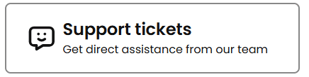
Creating a new support ticket
If you would like to create a new support ticket, simply click on "Open a Support Ticket".

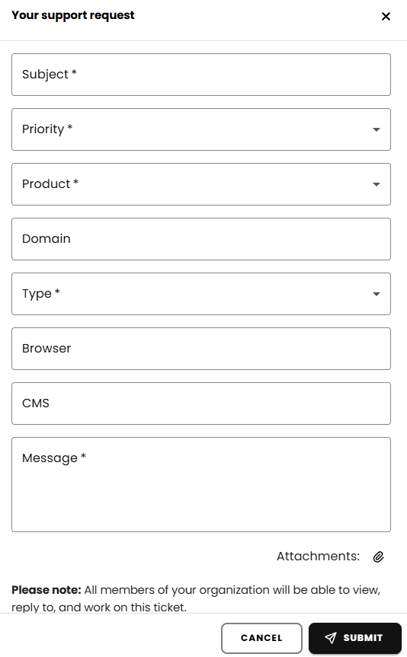
A form will open where you need to provide the following information:
-
Subject of the ticket
-
Priority of the issue
-
Product and type related to your question
-
A personal message describing the issue in detail
Additionally, you have the option to add the following optional information:
-
Affected domains
-
Browser used
-
CMS used
-
Attachments (e.g., screenshots or documents illustrating the problem)
Submit the ticket
After completing the form, click on "Submit" to send your support ticket to our team. Your ticket will now be processed.
Processing and responding to your support ticket
Once you have submitted your ticket, we will address your request as soon as possible. As soon as we have a response, we'll notify you by email. You can also view the response in chat format on the dashboard and track the entire conversation at any time.
Overview of already created support tickets
After clicking on "Support Ticket", you will be taken to an overview of the tickets already created within your organization. Here, you can view the following information:
-
The creation date of the ticket
-
The priority of the ticket
-
The subject of the ticket
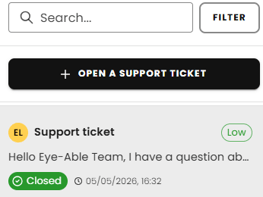
This overview helps you keep track of the status of your requests.
Viewing the history of a support ticket
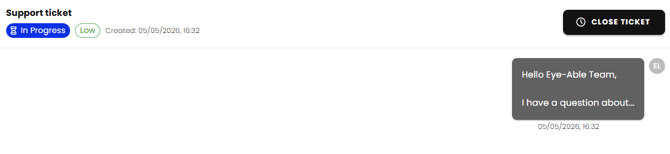
Click on a ticket to view the full chat history. Here, you can check if your question has already been answered. If not, you can directly create a new ticket.
If your question has already been answered and you no longer need assistance from our support team, you can easily close your ticket by clicking the “Close Ticket” button.
Important Notes
-
Depending on the agreement, there may be a fixed limit on the number of support tickets that can be open at the same time.
-
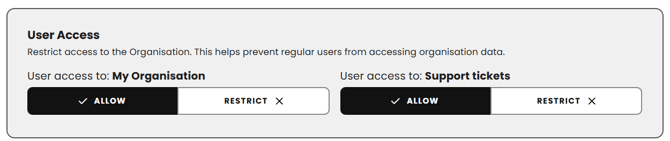
Under the "My Organization" section in the dashboard, there is the option to restrict access to the tickets.