
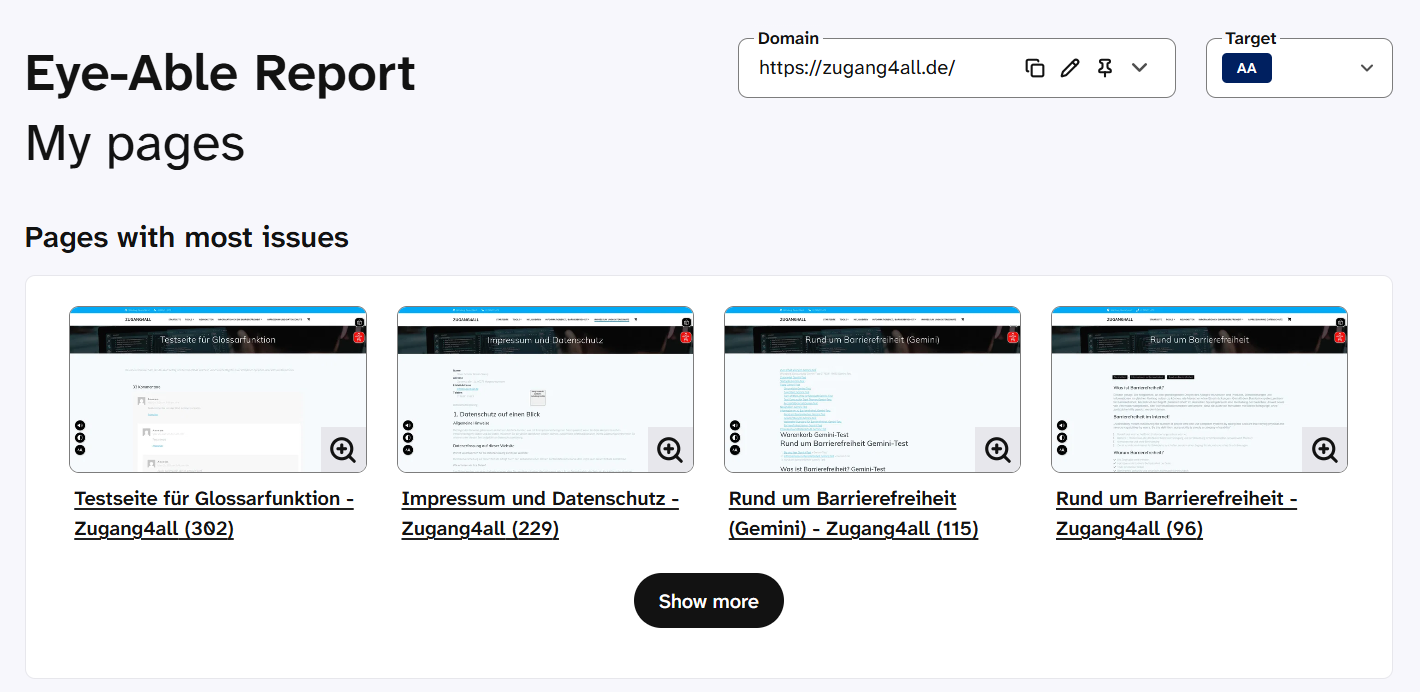
In the My Pages section of the Eye-Able Report dashboard area, you can see how the individual pages of your domain performed in the check. You can quickly identify where most issues occur and distribute the work within your organisation.
“My Pages” overview
In the “My Pages” section, you can use the dropdown menus in the top right corner to set two things: the domain whose pages are displayed and the WCAG level used as the target. Below this, you will find an overview of the pages with the most issues.
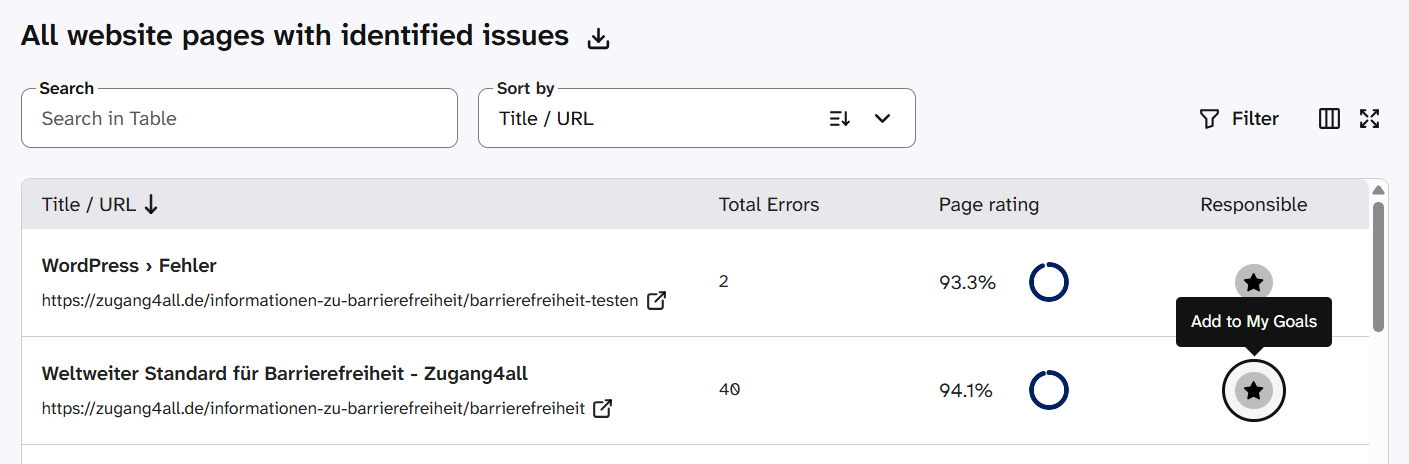
All websites with identified issues
Below the overview of the most issues is the table “All websites with identified issues”. It contains the columns: page title/URL, total errors, page score, responsibility. You can search this table for individual page titles or URLs, and you can also sort and filter it. In the responsibility column, you can click the star icon to assign the page to your own goals. With a second click, you can select another person from your organisation to whom you want to assign the page. You can also download the table as a CSV file.
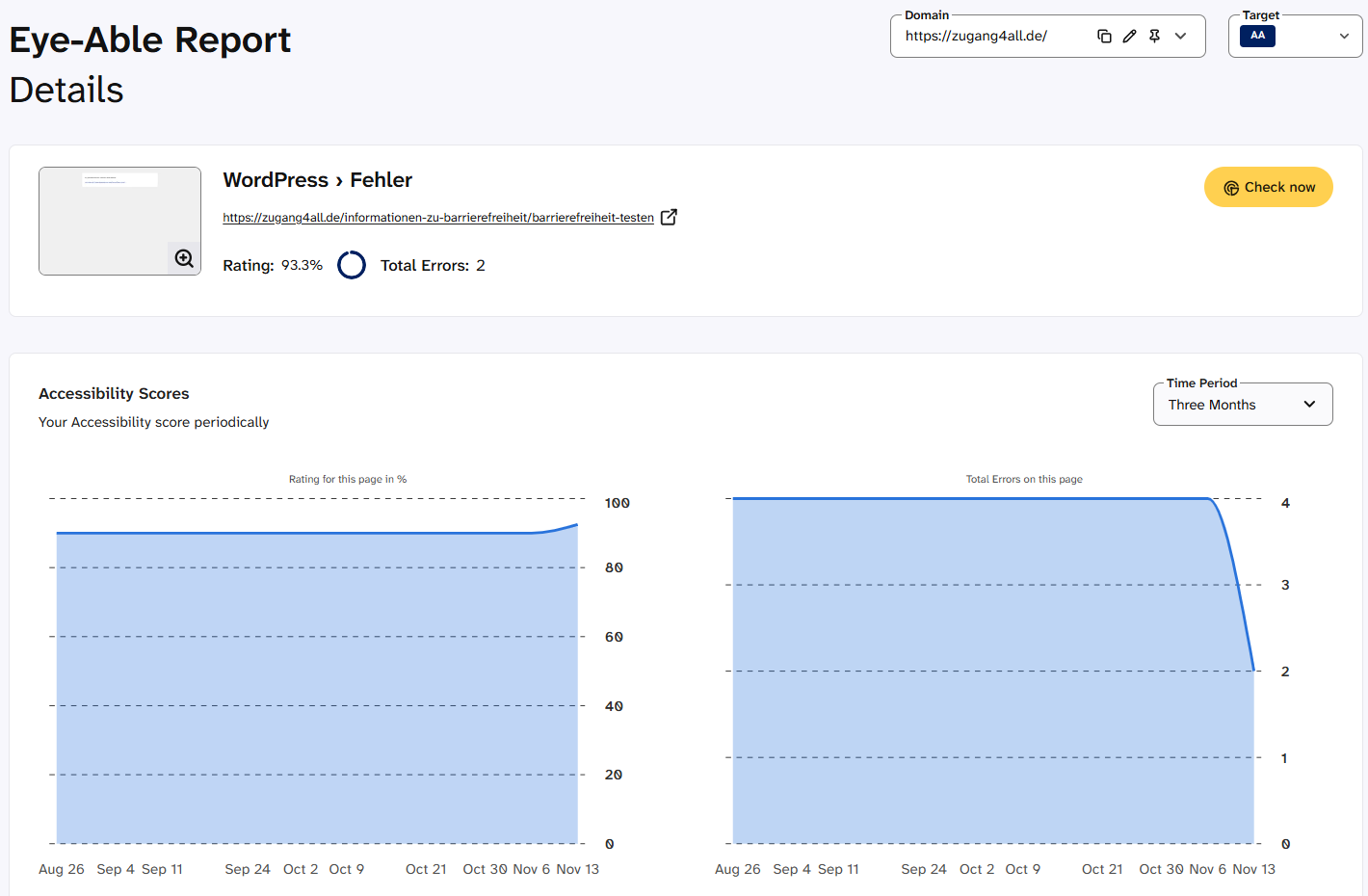
Page detail view
When you click a page title in the table, the detail page with the Report results for this page opens. There you will find the page score and number of errors, a chart showing how the accessibility of this page has developed over a specific period, and the “Check now” button. Clicking “Check now” opens the page in a new browser window and starts the audit check of the page, provided the audit browser extension is installed.
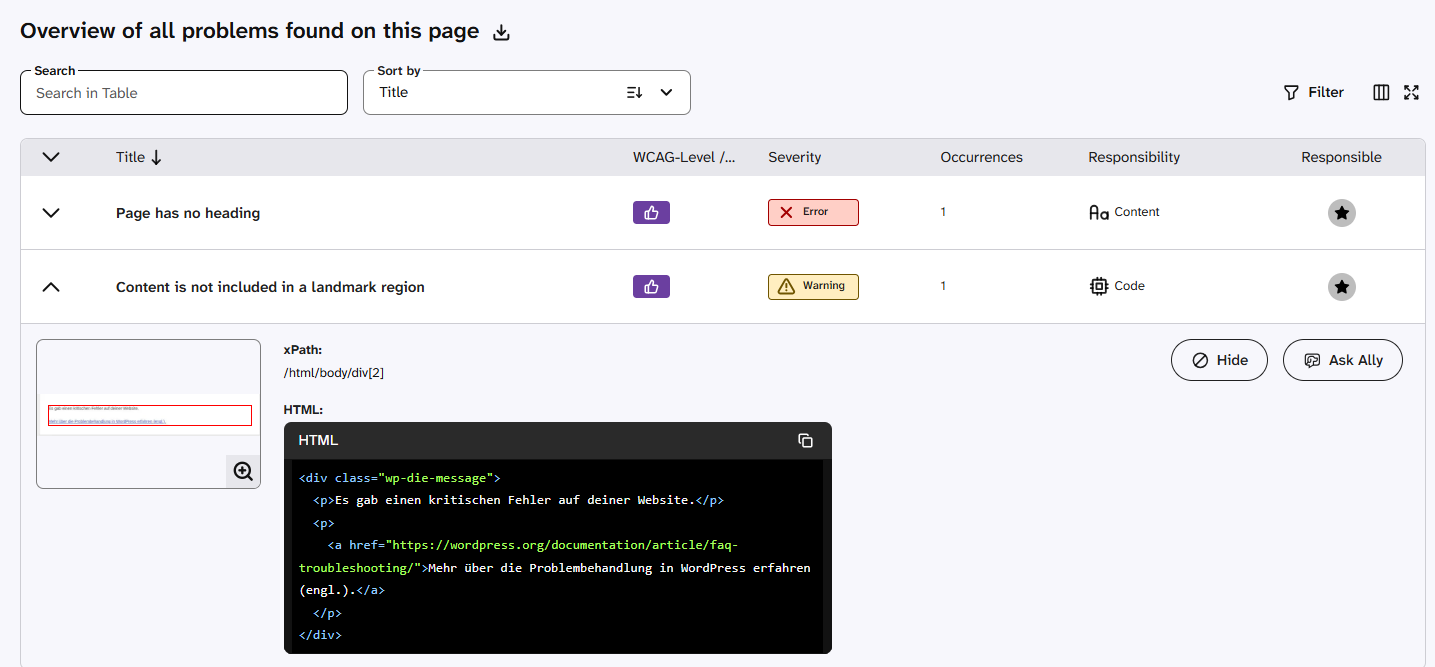
Overview of found and hidden issues
On the detail page, you will also find the table “Overview of all issues found on this page”. It shows you all errors, warnings and notices on the page. For each issue, you can see which WCAG level it violates, how often it occurs, which area is affected (code, design or content) and who is responsible. Here too, you can assign the issue to yourself or to a person in your organisation in the “Responsibility” column. By clicking the arrow, you can expand an entry in this table. There you will find details such as a screenshot and the corresponding HTML code, as well as buttons to hide this issue or to ask the AI assistant Ally about it.
Below this, you will also find a table of all issues on this page that have been hidden or marked as manually checked. By expanding them, you can show the issues again here.
Details on individual issues
When you click the name of an issue, a detail page with further information opens:
- Classification according to the categories of the WCAG and other standards
- Groups of people who may be affected by the issue
- Description of the issue and tips on how to fix it
- Overview of all pages on which the issue occurs
- Chart showing the frequency of the issue over a specific period
Further help
You can find more information about Eye-Able Report in the following articles:
If you have any further questions, the Eye-Able team will be happy to help: