
The AI Tests extend the automated accessibility testing of the Eye-Able Report with AI-supported, context-related test steps. They check your pages for barriers that automatic rules overlook, and suggest specific solutions.
You can find out what the AI Tests do in terms of content and how the results come about in the following article:
This article shows you where to find the AI Tests in the Dashboard and which functions are available to you there.
Opening the AI Tests in the Dashboard
You reach the AI Tests in the Dashboard via the Eye-Able AI menu area.
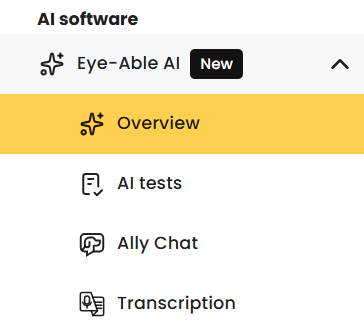
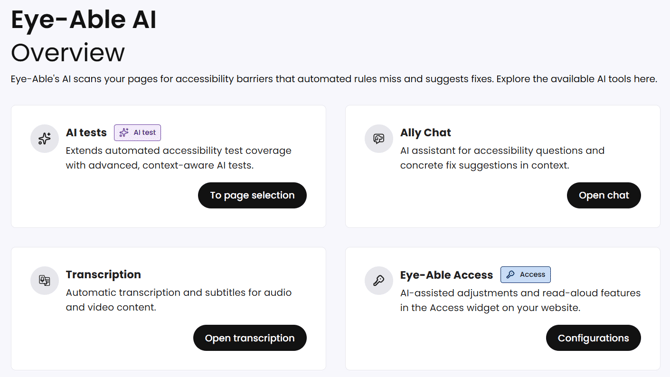
In the Eye-Able AI overview, all AI products are listed: AI Tests, Ally Chat, Transcription and Eye-Able Access. Via the "Go to page selection" button in the AI Tests tile, you reach the management area of the AI Tests. Alternatively, you can also open it directly via the "AI Tests" menu item.
Within the AI Tests, there are two tabs that you can switch between:
- AI tests – here you control which pages are checked and how often.
- AI issues – here you see which problems the AI Tests have found overall.

"AI Tests"
On the AI Tests subpage, you select which pages the AI Tests should check and how often. Selected pages are checked automatically and regularly at the chosen interval.
In this article, you can find out why the AI Test results are not always available immediately:
The AI Tests subpage is divided into the following areas:
-
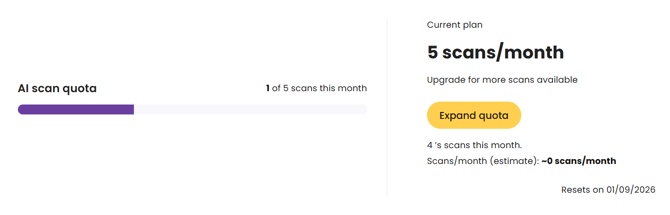
AI scan quota. At the top, you can see how many scans your current plan includes per month and how many of them have already been used. The current plan, the estimated number of scans per month and the date on which the quota resets are also displayed. Via the "Extend quota" button, you receive a corresponding offer to increase your quota if required.
-
Selecting pages. Here you add domains from your existing Report licences via "Add domain" – so only domains for which you already hold a Report licence can be selected. You then select the individual pages that are to be checked. For each domain, you use the scan frequency to define how often it is checked. The options are After each report, Daily, Weekly, Every two weeks, Monthly, Quarterly and Yearly. For each page, the number of problems found and the date of the last check are displayed.

-
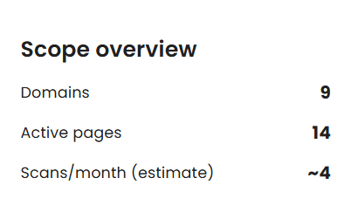
Scope overview. This overview summarises how many domains and active pages are selected and how many scans are used per month.
-
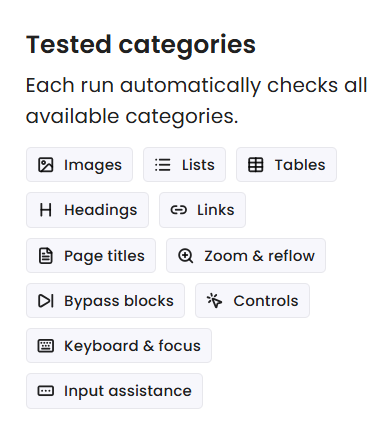
Tested categories. Here you see which categories are checked automatically on each run: Images, Lists, Tables, Headings, Links, Page titles, Zoom & reflow, Skip areas, Controls, Keyboard & focus and Input assistance.
-
Automatic run. The AI Tests are carried out automatically according to the defined interval, following a regular report – not after every report. If you have set Monthly as the interval, for example, the AI Tests are carried out once per month after a report. The scan frequency per domain thus limits how often a domain is checked, so that the monthly quota is not used up too quickly.
-
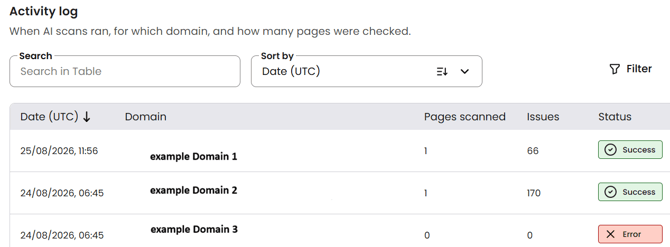
Activity log. At the bottom of the page, you find the activity log, which shows when AI scans have run, for which domain and how many pages were checked.
"AI Problems"
On the AI Problems subpage, you see which problems the AI Tests have found on your selected pages – broken down by category and in their development over the last runs.
Please note: AI Problems feed into the calculation of the Report score and therefore influence it.
In the upper area, you find a key figures overview with:
- Violations of AI rules in various categories
- Total number of occurrences and the change in the last run
- Scanned pages that are currently active
- Checked domains with active AI Tests

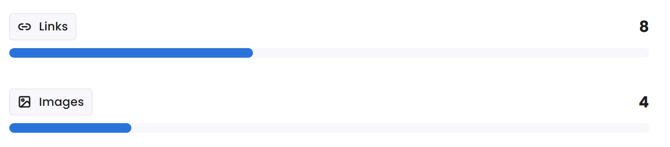
Below this, the Problems by test category area shows how many problem occurrences the AI Tests have found in each category across all checked pages. Via the "View report rules" button, you reach the associated rules.

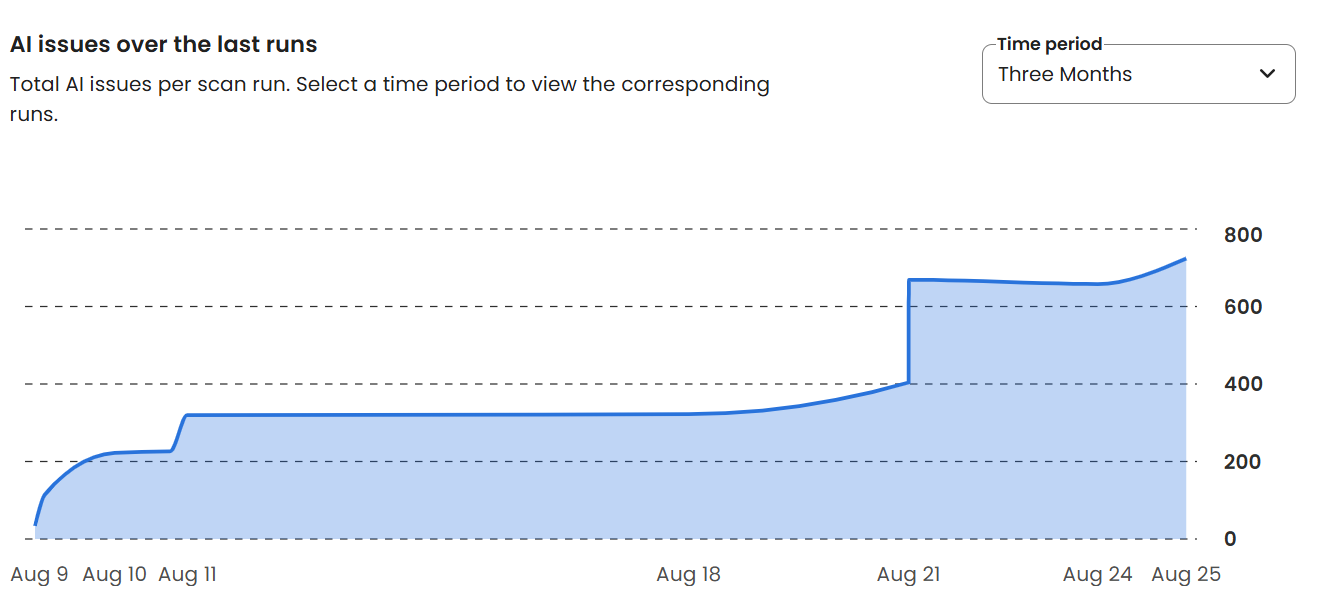
The AI problems in the last runs area shows the total number of AI problems per scan run. Via the Period selection field, you can define which runs are displayed.
Further help
Do you have further questions about AI Tests or need personal support? In the following article, you can find out how to get in touch with us: