
The AI Tests are an add-on module for the Eye-Able Report that extends the automated accessibility testing with AI-supported test steps. This makes it possible to cover test categories that could previously only be evaluated through manual or guided tests.
Function
The Eye-Able Report already tests a large number of test steps fully automatically. Some of the test steps could previously only be evaluated through manual or guided tests, however, because they require the content-related context of a page to be taken into account.
This is precisely where the AI Tests come in: with the help of AI-supported checks, additional test steps are evaluated automatically. The AI processes the contents of a page in context – an image together with its alternative text, for example – and assesses whether the content is appropriate.
An example from the Images & alt texts category: previously, it was possible to test automatically whether an alternative text is present or whether it matches the recommended length – that is, clearly measurable facts. Whether an alternative text is a good match for the image in terms of content could not be confirmed directly through automation, however. The AI receives the image as context, compares it with the alternative text, and checks whether the text represents a suitable written alternative to the image.

Important: Even with the AI Tests, manual checks remain an important part of a comprehensive accessibility assessment. You can find out why in the article Why manual tests are necessary despite AI Tests.
Labelling and display in the Report
All additional test steps of the AI Test add-on module are marked with the "AI Test" tag in the list of test rules. This makes them directly recognisable as AI-supported checks in the Report problem overview in the Dashboard.
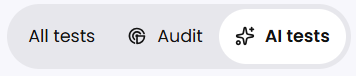
Using the filter, the results can additionally be sorted into "All tests", "Audit" and "AI Tests".
Examples of new, context-related test steps are:
- Heading text is not meaningful
- Form field has no visible label
- Focus alone triggers an unexpected change
- Image is not decorative
AI test coverage
In the detail view of an AI test step, the AI test coverage can be viewed – that is, for how many subpages of the Report the AI check is carried out.

The AI check is not carried out automatically for all pages of a report, but for a defined number of subpages.
The reason for this is the higher processing effort: because the AI explicitly processes a lot of context and a lot of page content, such a check is more computationally and credit-intensive than a purely automated check. The subpages to be tested are therefore defined specifically, in order to obtain a more in-depth check with more feedback for them.
Results and suggested solutions
In the detail view of a detected error, context-related information is available for AI Tests in addition to the standard fields Title, Category, Level, Description and notes on how to fix it.
For each error, the AI provides:
- a detailed reasoning of why an error is present
- a specific suggested solution – for alternative text errors, a suggested text, for example
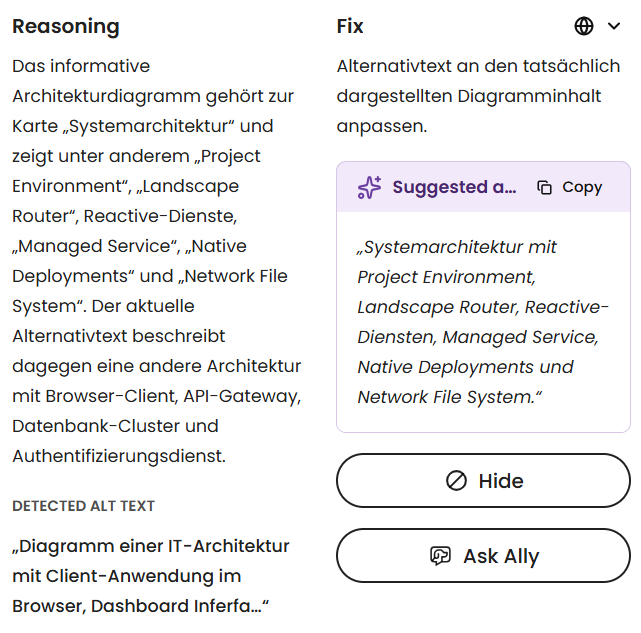
The familiar functions are retained: an element can still be hidden, and the AI assistant Assist Ally is available.
Activation
Unlike the other add-on modules of the Report, the AI Tests are not activated per report but as a quota for your entire organisation. You then decide independently for which reports and how many subpages you would like to use the AI check.
Note: The AI Tests are currently still in the beta test phase. The range of functions is being expanded step by step: further test steps will follow with upcoming updates.
Managing AI Tests in the Dashboard
Where to find the AI Tests in the Dashboard, which pages are tested, how to set the scan frequency and where to view the problems found are explained in the following article.
After activating the AI Tests, delays in the display of results in the Dashboard may occur due to the dependency on the Eye-Able Report. You can find more information in the following article:
Further help
Do you have further questions about AI Tests or need personal support? In the following article, you can find out how to get in touch with us: