
In this article, you will learn how to set up two-factor authentication (2FA) in the Eye-Able Dashboard. You will also learn what applies to backup codes, incorrect entries, mandatory 2FA and logging in via SSO or the browser extension.
Setting up 2FA
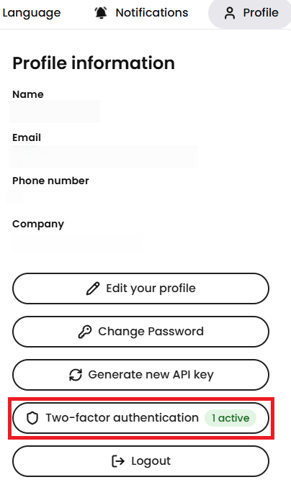
You set up 2FA in the profile menu of the Eye-Able Dashboard under “Two-factor authentication”.
- Open the profile menu in the Eye-Able Dashboard.
- Select “Two-factor authentication”.
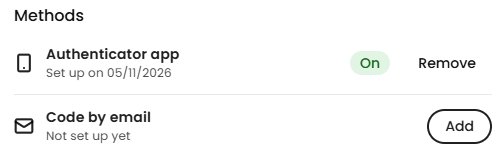
- Select the method you want to use.
The following methods are available for 2FA:
- Authenticator app: You receive the code via an authenticator app.
- Email: You receive the code by email.
- Both: You set up both methods.
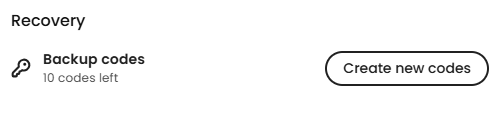
Backup codes
Backup codes are intended for cases where you lose your device. They are only displayed once.
Incorrect entries and requesting a new code
- After 5 incorrect codes, code entry is locked for 15 minutes.
- You can request a new email code after 60 seconds.
Mandatory 2FA for organisations
2FA can be made mandatory for an entire organisation. Eye-Able applies this setting for your organisation. If mandatory 2FA is active, users are guided through the setup when they log in.
If you would like to make 2FA mandatory for your organisation, please contact us:
Logging in via SSO
Logins via Single Sign-On (SSO) are not affected by 2FA.
You can find more information on logging in via SSO in the following articles:
Logging in to Eye-Able Audit
2FA is not available within the Eye-Able Audit browser extension itself. Older versions of Eye-Able Audit with their own password form do not support logging in with 2FA.
If you use 2FA, log in via the Eye-Able Dashboard.
You can find more information on Eye-Able Audit here:
Removing 2FA
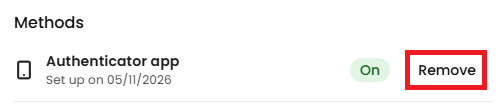
You can deactivate 2FA again at any time after setting it up.
- Open the profile menu in the Eye-Able Dashboard.
- Select “Two-factor authentication” again.
- Select the “Remove” option.
Resetting 2FA
If you would like to reset 2FA, please contact us and we will take care of it for you: