
Overview
If you want to check more than five PDFs simultaneously, you can use the CSV bulk upload feature in the Eye-Able Dashboard.
With this function, you can submit multiple PDF files via a CSV file, and all the links contained within them will be automatically checked.
Step-by-Step Guide to CSV Upload
1. Navigate to the Upload Area
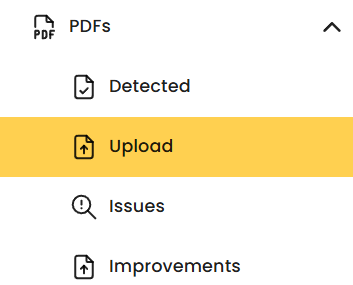
Open the Eye-Able Dashboard and go to the "PDFs" section.
There, you'll find the "Upload" tab where you can upload files for checking.
2. Start the Bulk Upload
Click the "BULK UPLOAD WITH CSV" button in the upload section.
This will start the upload process for multiple PDFs at once.

3. Upload the CSV File
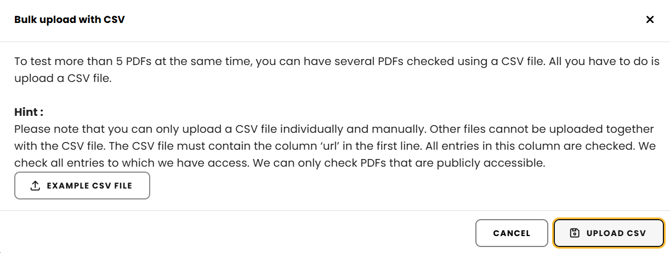
After clicking, a pop-up window will open.
Click "Upload CSV" and then select the appropriate CSV file to start the upload.
All the PDF links contained in the file will then be sent for accessibility checking.
Important Notes on CSV Upload
When uploading a CSV file, there are a few important points to keep in mind:
-
CSV files can only be uploaded individually and manually.
-
No additional files can be uploaded along with the CSV file.
-
All entries in the column will be checked.
-
Only entries that are accessible will be checked.
-
Only publicly accessible PDFs can be checked.
Structure of the CSV File
For the upload to work, your CSV file must have a specific structure.
-
The first row must contain the column "url".
-
Below that, you should include the full links to the PDFs to be checked.
All URLs in this column will then be automatically used for checking.
