
In this article, you’ll find out how to show the Eye-Able Assist Tool again after you’ve hidden it.
On your computer
-
Press the key combination Alt + 1 to reopen the toolbar.
-
Open the settings using the Gear-Icon
-
Disable the "Hide Icon" option.
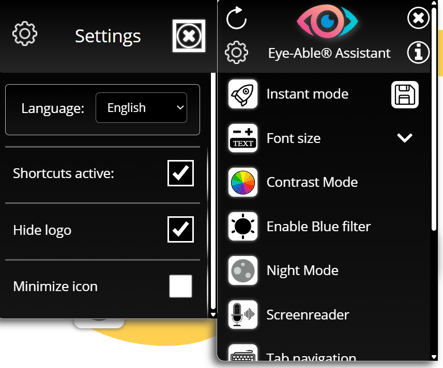
Note: If the toolbar cannot be opened with the key combination, you must delete the LocalStorage of the website in your browser settings.
On mobile devices (without keyboard)
-
There is no key combination to show Eye-Able Assist again.
-
To reset the ‘Hide Eye-Able Assist’ setting, the website's LocalStorage must be deleted in the mobile browser.
Instructions: Delete LocalStorage on mobile devices
-
Open your mobile browser and go to the relevant website.
-
Open the browser menu.
-
Scroll to ‘Website settings’ and tap on it.
-
Search for ‘Local Storage’ or ‘Manage website data’ and open this option.
-
Delete the data or remove the website from LocalStorage.
For website operators: Link to re-display Eye-Able Assist
You can add a link to your page that automatically re-displays Eye-Able Assit if it has been accidentally hidden. To do this, use the following code:
<a href="javascript:localStorage.removeItem(“eyeAbleHideIcon”); window.location.reload();">
Re-display Eye-Able Assist
</a>
This link removes the corresponding entry in LocalStorage and reloads the page so that Eye-Able Assist is visible again.