
Eye-Able offers the possibility to conveniently log in via Microsoft Single Sign-On (SSO) at several points. This feature simplifies the login process by using your existing Microsoft login, making additional credentials unnecessary.
Requirements
To log in via Microsoft SSO, this option must be enabled by Eye-Able.
Please contact us if you would like to enable Microsoft SSO access for your organisation:
Please ensure that Microsoft SSO access is enabled for your organisation before attempting to log in this way.
You can find detailed instructions on this in the following article:
Logging in with Microsoft SSO in the Eye-Able Dashboard
-
Open the Eye-Able Dashboard
-
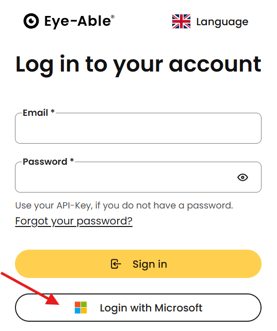
Click on the button “Log in with Microsoft"
-
The usual Microsoft login window will appear. Enter your Microsoft credentials there.
-
After a successful login, you will be automatically redirected to your Eye-Able Dashboard.
This method only works if the Microsoft SSO feature has been enabled for your account. If the login fails, please contact your administrator.
Logging in with Microsoft SSO in Chrome & Edge
Important: Please install the Eye-Able Audit browser extension beforehand.
You can find out how this works here:
Once installation is complete, please follow the instructions below:-
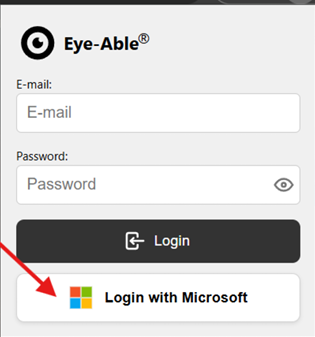
Open the Eye-Able Audit extension via the browser toolbar.
-
In the login window, click on “Log in with Microsoft.”
-
Log in with your Microsoft credentials.
-
After a successful login, the Audit Radar icon will appear on the licensed domains, allowing you quick access to Eye-Able Audit.

-
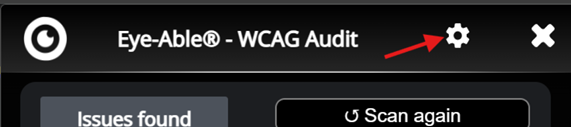
By clicking on the gear icon in the extension, you can open the settings and view your active licenses.
Logging in to Eye-Able Audit for Mozilla Firefox
As Eye-Able Audit does not currently support Microsoft SSO in Mozilla Firefox, the login process is slightly different here. You can find instructions on how to install Audit in Firefox in the following article:Summary
-
Eye-Able Dashboard: Log in directly via “Log in with Microsoft.”
-
Eye-Able Audit (Chrome & Edge): Login via the same Microsoft button after installing the extension.
-
Eye-Able Audit (Firefox): No SSO possible, login via API key required.
Further information
We also offer you the option to log in via OpenID Connect. If you are interested in this or require further information, please contact our support team – we will be happy to assist you as soon as possible.