
With guided tests, you are guided through the test steps of EN 301 549 that cannot be tested automatically.
What are guided tests?
Guided tests offer you a simple and quick way to identify barriers that automated tests, such as Eye-Able Report, may not detect.
- Suitable for all experience levels thanks to a high level of user-friendliness
- Covers areas that cannot be tested automatically
- 100% coverage of the EN 301 549 standard, including the points that are not tested automatically
- Efficiency: A step-by-step guide containing images and information from your website helps you answer open questions about accessibility.
Starting guided tests
First, open the Eye-Able Dashboard and navigate to "Guided Tests".
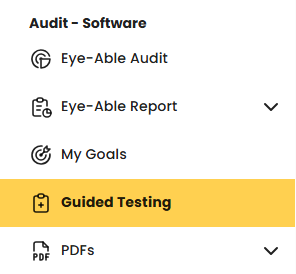
- In the list, you can see all guided tests you have started or completed so far.
- You can edit, continue or delete existing tests.
- Click the "Start new test" button to begin a new guided test.

Test configuration
After clicking "Start new test", a new window opens. There, you select the domain.
Click "Start" to begin the guided test.
Carrying out the test steps
An overview of the test steps is available as a list or as a tree structure.
You now go through all test steps one by one. Beforehand, it is always explained: "Why is this being tested?" and "How is this being tested?"
For each test step, you assess whether it has passed or failed the test.
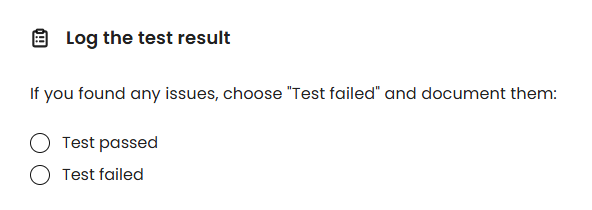
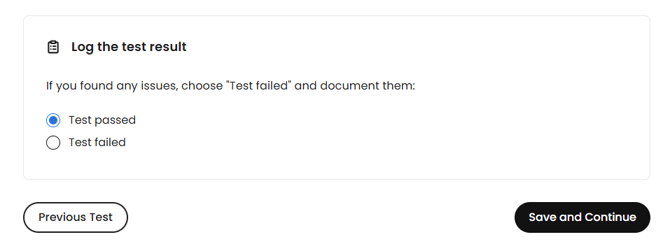
If you click "Test passed", you can continue with the next test step by clicking the "Save and continue" button.
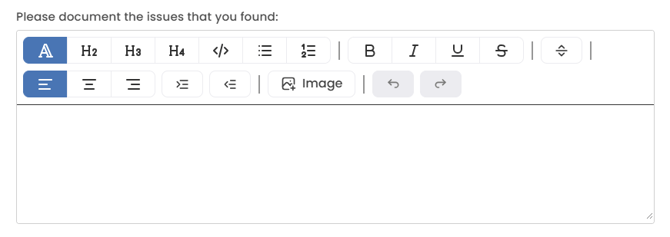
However, if you click "Test failed", a text editor opens in which you can record the issues you have found. You can then click "Save and continue" to move on to the next test step.
Continuing a guided test and editing results
If you leave the test area, you can continue the test at a later point. To do this, select the existing guided test from the table. Click the "Continue test" button to keep working on the guided test.
If you have completed a guided test 100%, you can also edit the results here afterwards. To do this, click the "Edit results" button.
Managing and viewing test drafts
After starting, you can find your guided test under "Guided Tests" in the Dashboard. There, you can edit, continue and delete the test.

Use the pencil icon to edit the existing test (if it has already reached 100%) or to continue it (if editing was interrupted). Use the bin icon to delete it if you no longer need the test or want to start a new one.
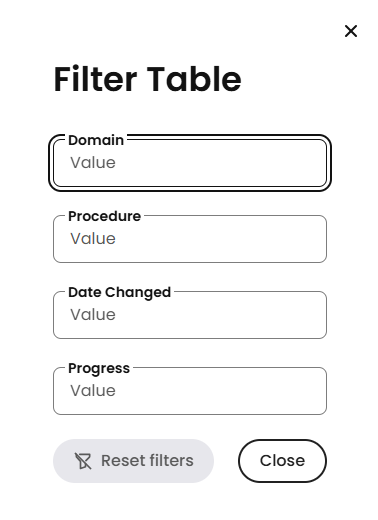
You can filter the table by domain, procedure, date modified and progress.
Further information and help
You can find further information on the topic of testing in the following articles:
Do you have further questions or need personal support? The following article explains how you can get in touch with us: