
The glossary in Eye-Able Translate helps you to use important terms consistently in your translations. You can specify how certain words or terms should be translated.
This ensures, for example, that proper nouns are always correct. If a term such as ‘Eye-Able’ is not to be altered, you can specify this in the glossary. Technical terms or brand-specific designations can also be translated exactly according to your specifications.
The glossary entries you save will be used in future translations, helping to ensure that your content automatically matches your preferred wording. Existing translations containing text elements that have been added to the glossary will be adjusted based on the glossary entry the next time the Transate module is used.
Glossary functions
In the glossary, you can define word pairs that must be used in future translations. This is particularly helpful for technical terms, proper nouns or brand names.
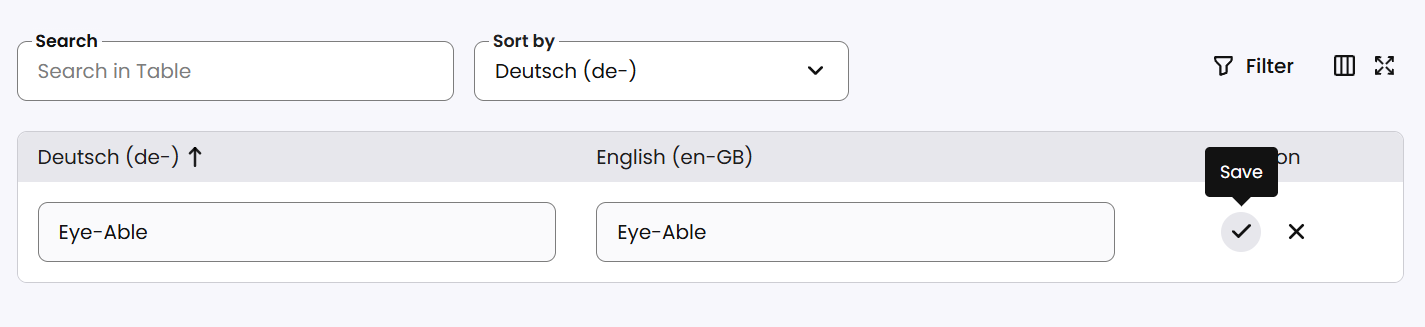
Within the table, you can search for, sort and filter existing glossary entries by specific terms. This makes it easier to find existing entries and allows you to manage your glossary entries effectively.
Create a new glossary entry
You can create a new entry using the ‘+ New glossary entry’ button.

To do this, enter the original term in the ‘Original’ field on the left. On the right (in the ‘Target’ field), enter the desired translation. Then confirm the entry by clicking the tick icon. The new glossary entry will then be added and can be used for future translations.
Navigating to the glossary in the dashboard
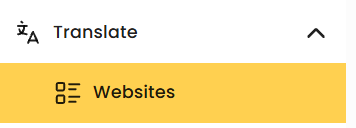
To use the glossary, open the ‘Translate’ section in the dashboard and navigate to the ‘Websites’ sub-menu item.
There, you can search for the desired domain and select it. Clicking the pencil icon to the right of the domain takes you to an overview of the translations created on your site.

For each language pair, you then have two options:
-
Click the pencil icon to view and edit specific translations.
-
Click the book icon to open the glossary for that language pair.
