
You can customise Eye-Able Assist for your own website in the Assist configurator in the dashboard, for example with regard to magnification, the position and appearance of the icon, the Read website aloud function or excluding individual elements from functions. You can make all the customisations described in this article yourself at any time in the Assist configurator.
Design and position
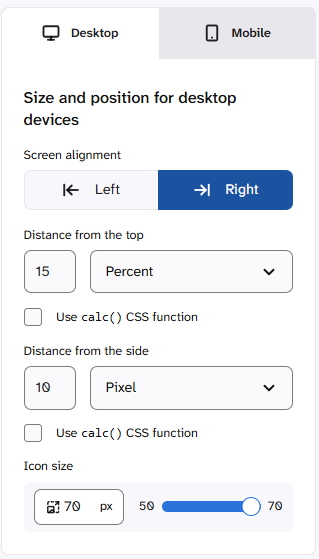
You can set the position of the icon separately for desktop and mobile in the “Design & Position” section.

Here you determine the icon size, the spacing of the icon and the side on which it appears. For the desktop view, values between 50 and 70 pixels are recommended, for the mobile view values between 35 and 50 pixels.
You can find more information on this in the following article:
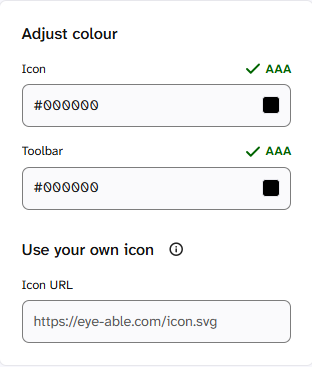
In the configurator, you also have the option to change the colour of the icon or to use your own icon.
Menu functions
In the “Menu functions” section, you determine where the individual functions appear in the Eye-Able Assist toolbar. For each function, you choose whether it is displayed in the main menu or under “More functions”.

The following functions can be moved:
- Blue filter
- Night mode
- Colour blindness
- Hide images
- Keyboard navigation
- Large mouse pointer
- Hide animations
The functions Instant view, Font size, Contrast mode and Read website aloud are core functions. They always remain in the main menu and cannot be moved.
Read website aloud
In the “Read-aloud function” section, you can control the reading flow of the Read website aloud function.

- Start element: Determines the element at which automatic reading aloud begins.
- Allowlist: Restricts the read-aloud function to the listed elements and their descendants.
- Blocklist: Excludes the listed elements and their descendants from the read-aloud function.
To define rules and exceptions for the elements of the website, the corresponding CSS selectors, for example #elementID, .importantElements or [role="tooltip"], can be added to the fields and each confirmed with the Enter key.
Under “Pronunciation settings”, you can also determine how abbreviations are read aloud. To do this, enter the abbreviation and the desired replacement text. If, for example, an abbreviation is to be read as individual letters, separate the letters with spaces: “CEO” becomes “C E O”.
You can find more information about the read-aloud function of Assist in the following articles:
- Behaviour of the read-aloud function with abbreviations and characters
- Why doesn't the text-to-speech work in Eye-Able Assist?
- Data transfer with the read-aloud function of Eye-Able Assist
- Why does the read-aloud function of Assist not read ARIA descriptions?
Advanced settings
In the “Advanced” section of the Assist configurator, you will find settings that allow you to tailor Eye-Able Assist specifically to your website. As a rule, we carry out an initial customisation for each website. Accordingly, settings may already have been made in the “Advanced” section. We recommend not removing these.

1. Magnification
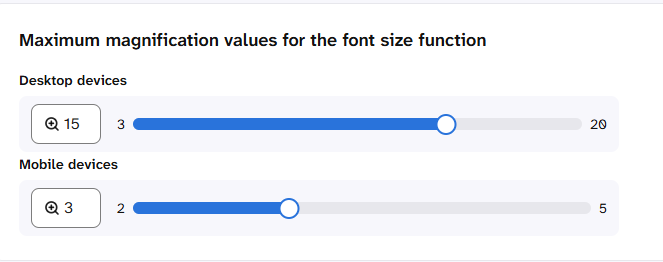
You can limit the maximum magnification, separately for the desktop and mobile view.
2. Optimising Assist for the website
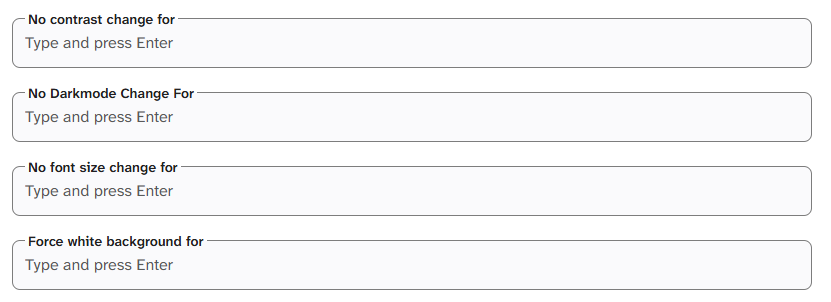
With functions such as Font size, Contrast mode or Night mode, individual elements may not be displayed as expected. One example is text that breaks out of its container when magnified. You can exclude such elements from the respective function or give them a white background so that they are more visible. The following fields are available for this:
- No contrast change for: excludes elements from the colour adjustment in contrast mode
- No dark mode change for: excludes elements from the colour adjustment in night mode
- No font size change for: excludes elements from font enlargement
- Force white background for: gives elements a white background
To define exceptions for the elements, the corresponding CSS selectors, for example #elementID, .importantElements or [role="tooltip"], must be added to the fields and each confirmed with the Enter key. The exception also applies to all child elements of the selected elements.
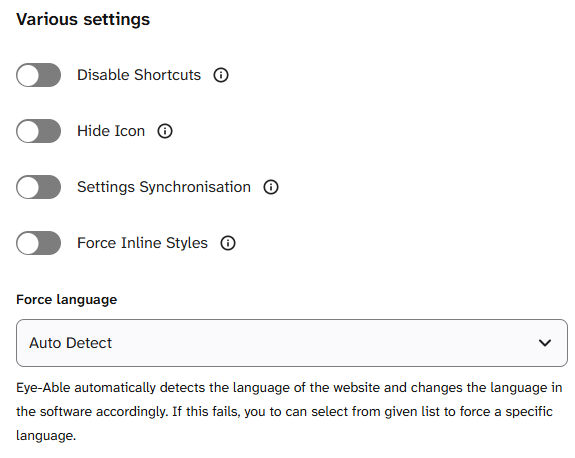
3. Miscellaneous settings
You can also activate the following options here using a toggle:
- Deactivate keyboard shortcuts
- Hide icon
- Settings synchronisation
- Force inline styles
Eye-Able Assist automatically detects the language of your website and adapts the language of the software accordingly. If this does not work, you can select a specific language from a list under “Force language”.
Further information and help
You can find more information on related topics in the following articles:
- Eye-Able Assist Product Overview
- Can I integrate Eye-Able Assist functions via my own buttons?
- How do I create extra buttons for contrast mode, font enlargement or the read-aloud function with the Assist API?
- Embed the Eye-Able Assist icon directly in the page
Do you have further questions or need personal support? In the following article, you can find out how to get in touch with us: