
Eye-Able Audit is a browser extension for Chrome, Firefox, and all Chromium-based browsers. You can find the current download link for the browser extension in the Eye-Able Dashboard.
Installing the extension in Firefox
-
Open the Firefox Add-ons Store
Open the Firefox Add-ons Store. Click on the blue button labeled “Add to Firefox.”
-
Confirm the Extension
After clicking, a pop-up appears with information about the required permissions and available settings. Confirm it by clicking "Add".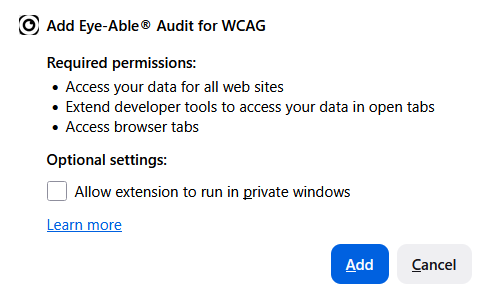
-
Redirect to the Dashboard
After a successful installation, you're automatically redirected to the Audit page in the Dashboard, and another pop-up window appears. There you can tick the checkbox "Pin extension to toolbar". Confirm the pop-up by clicking "OK".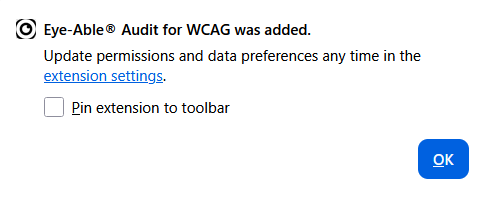
Logging in to Audit
Go to a licensed website. A radar icon now appears in the bottom right corner. Before using Audit for the first time, you need to log in with your Dashboard login details. There are several ways to open Audit:
- Click the radar icon
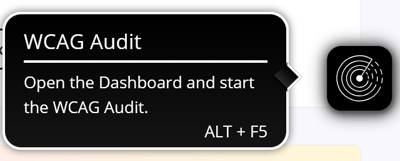
- Keyboard shortcut: ALT + F5
- Right-click on the page → select "Start Eye-Able scan"
Audit then opens and prompts you to activate your licence. Click "Open settings and licence menu".
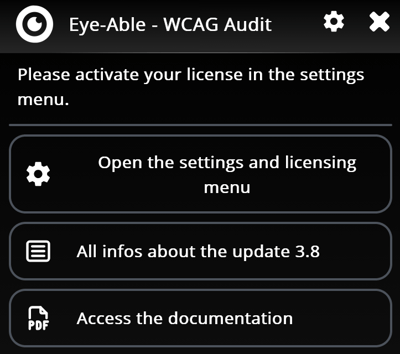
A new window opens. Enter your login details there, or click directly on "Log in with the Eye-Able Dashboard".
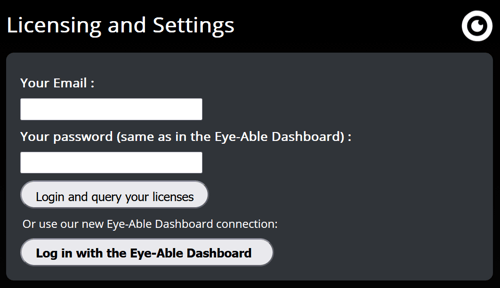
Depending on your setup, you can also click the pinned Audit icon in the browser toolbar at the top right, or select Audit by clicking the puzzle-piece icon. Using this route opens a login window:
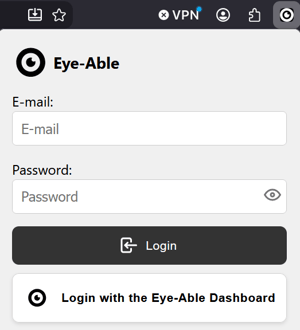
Enter your login details there, or click directly on "Log in with the Eye-Able Dashboard".
Starting a scan
After logging in for the first time, you can start a scan on any subpage of the licensed website using the same methods:
- Click the radar icon
- Keyboard shortcut: ALT + F5
- Right-click on the page → "Run Eye-Able Audit"
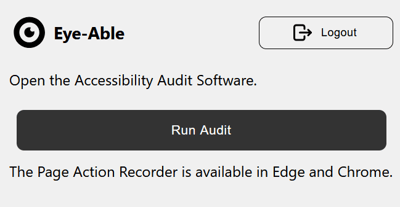
- Start Audit via the toolbar. This also opens a pop-up first — click "Run Audit" there.
If you have questions or run into problems during installation, feel free to contact our team: