
In this article, you'll learn how to install Eye-Able Audit in Microsoft Edge.
Step-by-Step Guide to Installing Eye-Able Audit in Edge (Browser Extension)
The Eye-Able Audit Tool is a browser extension for Chrome, Firefox, Microsoft Edge, and other Chromium-based browsers.
How to install Eye-Able Audit in Microsoft Edge
-
Open the download link via the Eye-Able Dashboard or directly from the Microsoft Edge Add-ons Store.
-
Click the blue button labeled “Get”.
-
A popup window will appear – click “Add Extension” to confirm the installation.
-
After successful installation, you will automatically be redirected to the Audit section in the Eye-Able Dashboard.
Login and License Activation
-
In the top right corner of your browser, click the puzzle icon.

-
Select “Eye-Able Audit” to open the license menu.
-
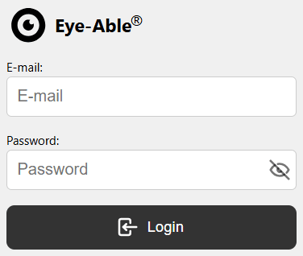
Log in using your credentials from the Eye-Able Dashboard.
-
Click “Login”.
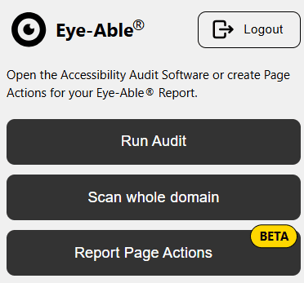
After a successful login, you can:
Start Audit
Scan the entire domain
Execute a Report page action
How to Start a Scan
Once you visit a licensed website and your license is active, a radar icon will appear in the bottom right corner of your screen.

You can start a scan by:
-
Clicking the radar icon
-
Using the keyboard shortcut:
ALT + F5 -
Right-clicking on the page → Select “Run Eye-Able Audit”
Here you'll also find more articles about the Features and Functions of Eye-Able Audit.