
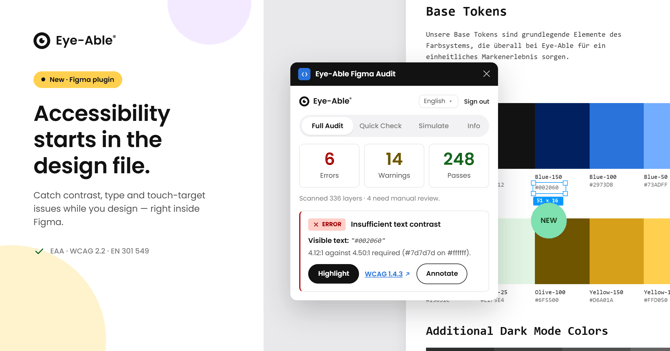
Eye-Able Figma Audit is a plugin for Figma that automatically analyzes your designs according to WCAG guidelines. The plugin helps identify and fix accessibility barriers early and enables important information to be passed directly to developers. The analysis is performed entirely locally within Figma, without uploading any design content.
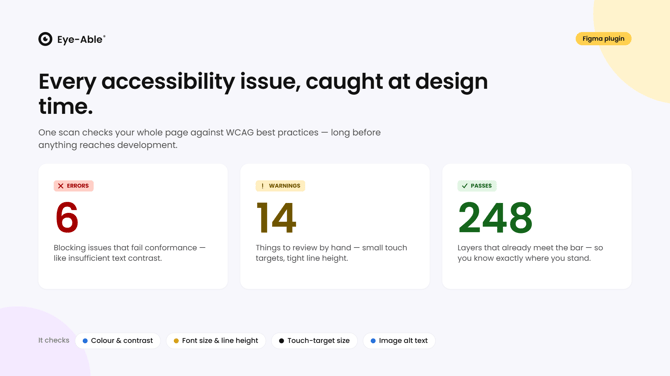
You can either check individual elements (Quick Check) or scan entire pages (Full Audit). The results are clearly categorized by severity level: Errors, Warnings, Passed, and Manual Review items.
Installation
To use the plugin, you need:
-
An Eye-Able account (credentials as used in the dashboard)
-
The Figma desktop app (recommended) or browser version
-
Edit permissions for the file to be checked (plugins do not work in View mode)
-
The plugin can be used in both the Design Editor and Dev Mode
There are two ways to install the plugin:
Installation via the Figma Community
-
Open the desired file.
-
Navigate to Menu → Plugins → Manage plugins… or use the Resources icon.
-
Search for Eye-Able Figma Audit.
-
Select Run (launch) or Save (install permanently).
Note: If you are using the new Figma interface (UI3), you can also find the plugin via the Resources icon or the Actions search. The Menu → Plugins path remains available.
Installation via a Provided Package
If you received the plugin as a `.zip` file:
-
Extract the file.
-
Open the Figma desktop app.
-
Go to Menu → Plugins → Development → Import plugin from manifest…
-
Select the `manifest.json` file.
-
Launch the plugin from the Development section.
Sign In
When launching the plugin for the first time, sign in using your Eye-Able Dashboard credentials. Your session remains active even after restarting until it expires automatically. You can sign out at any time via "Sign out". You can conveniently change the language using the language selector. A total of 13 languages are available.
Features
The plugin operates entirely within Figma. One component reads the design structure, while another performs the analysis and displays the results.
Especially for contrast evaluation, the actual background is reconstructed by analyzing and combining layers behind text elements. For images or gradients, the most critical contrast value is calculated. Uncertain results are marked as "Manual Review." The plugin's functionality can be divided into the following areas:
Full Audit
With the Full Audit, you can analyse a selection, a frame or an entire page, view results sorted by errors, warnings and passes, and view details for each rule (including a WCAG reference). You can also jump directly to the relevant element (highlight) and hide specific checks using filters.
Quick Check
Quick Check is designed for the fast analysis of individual elements such as text, buttons, or images—ideal for iterative design processes.
Checked Criteria
Among other things, the plugin evaluates the following aspects:
-
Color contrast ratios (e.g., at least 4.5:1 according to WCAG AA)
-
Font sizes (Error below 12px, Warning below 16px)
-
Line height (Warning when less than 1.5× the font size)
-
Touch targets (Error below 24px, Warning below 44px)
-
Alternative text for images (missing annotations)
Evaluation of Results
Results are categorized as follows:
-
Error: Critical issue that should be fixed before handoff
-
Warning: Should be reviewed; may be acceptable depending on context
-
Pass: Requirements fulfilled
-
Manual Review: Manual verification required (e.g., complex backgrounds)
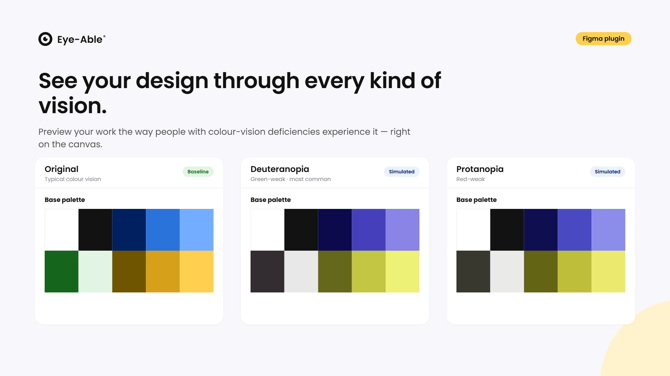
Color Vision Deficiency Simulation
The built-in simulation allows you to view designs from the perspective of people with colour vision deficiencies. These include: deuteranopia, protanopia, tritanopia and achromatopsia.
The preview can be enlarged and even placed directly on the desktop as a comparison.
Collaboration with Development
For collaboration with developers, you can add alt texts and accessibility notes and save them directly as Figma Dev Mode annotations.
This ensures that all relevant information remains within the design and can be handed over to developers without additional effort.
Data Protection
-
No design data leaves Figma
-
Network access is only used for login and loading fonts and logos
-
Session data remains stored locally
-
No tracking is performed, and no data is shared with third parties
Limitations and Troubleshooting
Some aspects can only be assessed later during the development process:
-
Reading order, semantic structure, and roles
-
Interactive elements are identified heuristically
-
Text within images should additionally be checked visually
For a complete analysis, it is recommended to combine the plugin with the Eye-Able Audit & Report in the dashboard.
You can easily resolve common issues when using the Figma plugin:
-
Sign-in failed: Verify your credentials or contact support
-
Plugin does not start: Check your edit permissions
-
No results displayed: Ensure that content is selected or visible
-
Notification about a different page: The audit was performed on another page—run it again
Further Support
If you need additional assistance, please feel free to contact us directly.
Contact details for customers and interested parties