
Manual Test Results in the Eye-Able Dashboard
Manual test results are available in the Eye-Able Dashboard. This is an additional module for expert tests, complementing the guided tests.
You can continue to commission manual tests from Eye-Able as usual. In addition to the familiar PDF reports, the results of manual tests are now also available interactively in the dashboard. You can find them under the “Completed tests” tab.
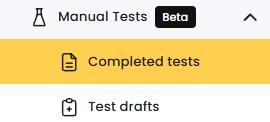
In addition, you can document your own manual test results, provided you already have experience in the field of accessibility testing.
What Are Manual Accessibility Tests?
You can find more information about what manual accessibility tests are and why they are important in the following article:
What Are Manual Accessibility Tests?
Requirements for Manual Testing
Important: The individual testing steps are not explained in the dashboard. Manual testing is intended for people with professional prior knowledge in the field of accessibility and testing.
If you do not have the necessary expertise, we will be happy to carry out the manual tests for you. If you are interested, please get in touch with your support-contact.
Starting a Manual Accessibility Test
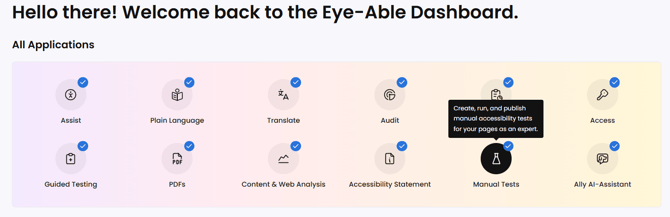
First, open the Eye-Able Dashboard and navigate to the “Manual Tests” tab.
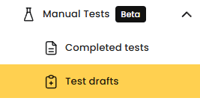
Go to the “Test Drafts” page, there you will see all unpublished tests.
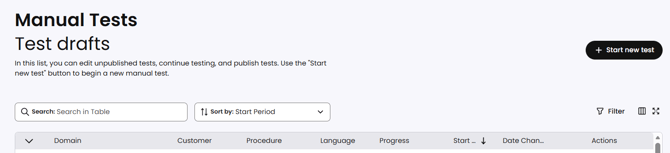
You can edit, continue, or publish existing tests. Click “Start New Test” to begin a new manual test.
Test Configuration
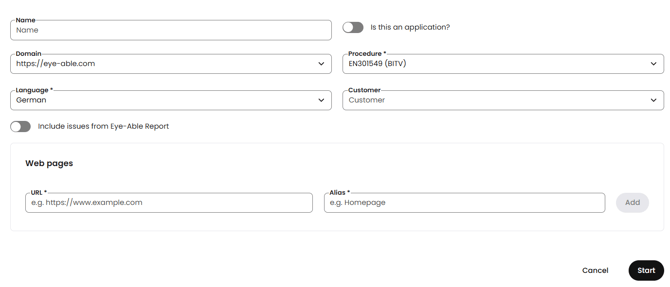
After clicking “Start new test,” you select:
-
the domain
-
the desired testing procedure
-
the language
-
optionally, whether it is an app
The “Customer” field is automatically filled in for you. You can then add specific website URLs that are to be tested. Click “Start” to begin the manual test.
Performing the Test Steps
Depending on the selected testing procedure, you now independently go through the individual test steps.
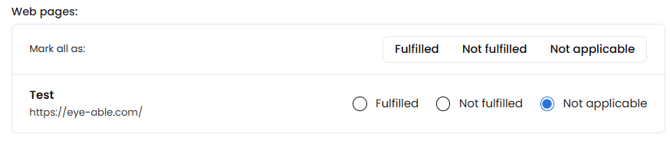
For each test step, you assess whether it is: fulfilled, not fulfilled, not applicable
Documenting the Test Results
The assessment of each test step is documented directly in the dashboard.
In addition, it is advisable to:
-
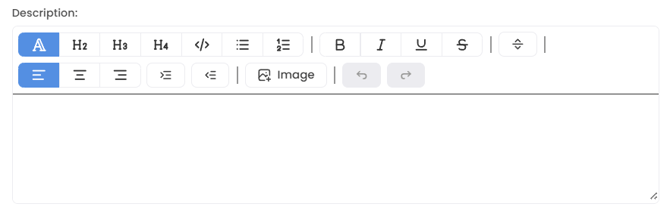
add a description of the identified issue
-
specify on which page the issue was found
-
add screenshots if necessary
Recommendations and Guidance
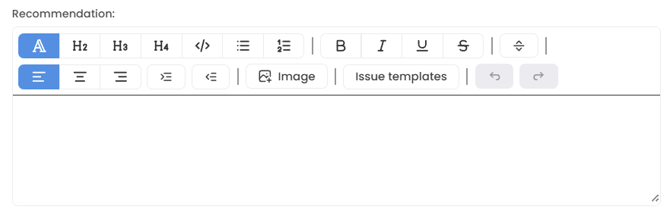
In the “Recommendations” field, you can enter specific recommendations that explain how the identified issue can be resolved.
Depending on the case, it may be useful to add specific code examples.
Priority & Effort
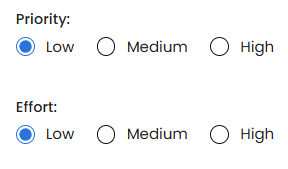
Additionally, you have the option to assess the results of the test step according to priority and effort.
This allows you to filter the results later by specific attributes (low, medium, high) and gain a clearer overview.
Saving, Continuing, and Creating the Report
With “Save and Continue,” you proceed to the next test step.
Using the “Preview,” Button on the top left you can view a fully formatted test report document.
The report can be downloaded and published. By clicking “Publish,” the report is listed under “Completed Tests” in the dashboard and can be accessed there at any time.

Managing and Viewing Test Drafts
After starting, your test draft can be found under the “Test drafts” tab in the overview list.
There, you can delete the draft, view it, or continue with the testing.
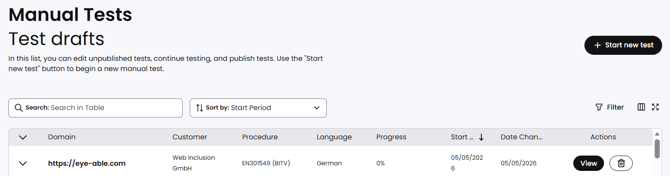
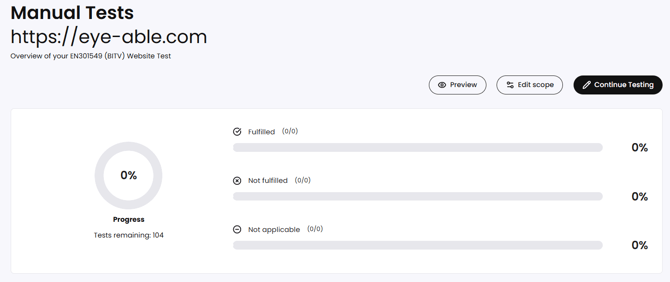
By clicking “View,” you can:
-
review your previous test results
-
continue the manual test
-
access an overview of the current testing status
You also have the option of filtering your test results by Status, Comments, Disability Groups and Priority.
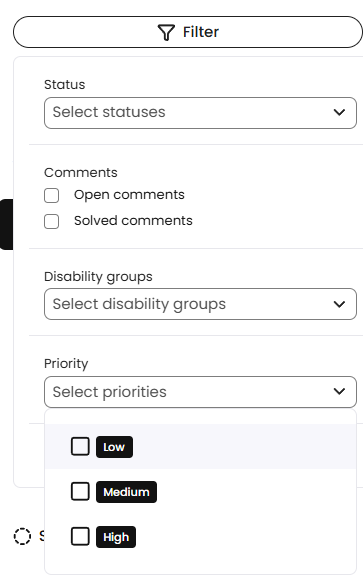
This allows you to keep track of the progress and content of your manual accessibility test at all times.