Introduction
As an administrator of an organization, you have the ability to control and adjust access for individual members of your organization. Here, you can specify exactly which licenses and tools are visible and usable by which individuals.
Additionally, in this area, you can edit users and grant or revoke admin rights.
Note:
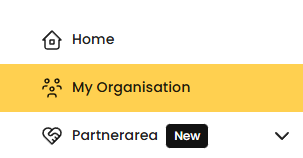
If you cannot see the "My Organization" menu item, you do not have admin rights.
In this case, please contact your organization's admin.
If you are unsure who holds this role, please contact our support team.
Step 1: Open your Dashboard
To make changes, first open the Eye-Able Dashboard. There, in the navigation bar, you will find the menu item "My Organization." Click on it to go to the overview of your members.
Step 2: View Members and Access Rights
In this area, you will see a list of all the members in your organization.
Here, you can immediately see what type of access each person currently has.
By clicking on the button "Full / Restricted Access", the detailed view of the current license and tool access for that person will open.
Additionally, here you can:
-
Edit users
-
Grant admin rights
-
Revoke admin rights

Step 3: Adjust Licenses
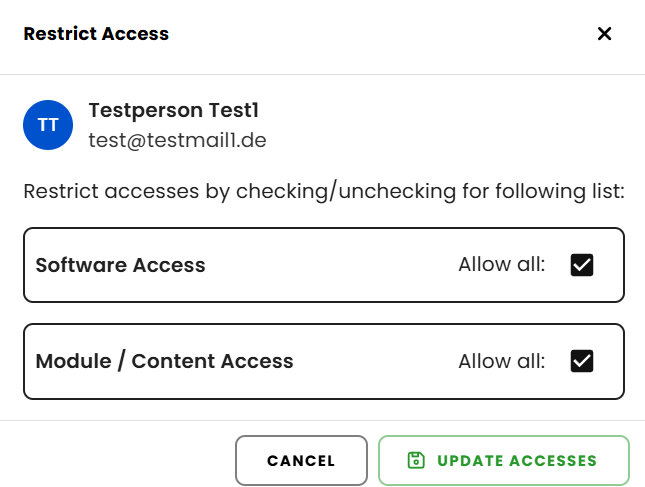
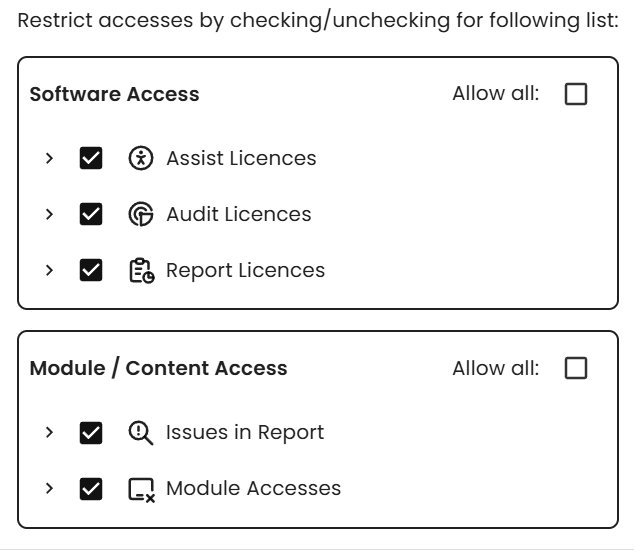
To restrict or extend access, check or uncheck the box next to the respective entry.
If you remove the checkmark from the overarching terms "Software Access" or "Module / Content Access", a detailed view will open. There, the access can be adjusted individually for domains and modules.
Step 4: Save Changes
After you have made the desired changes, click on "Update Access Restrictions" to save the adjustments.
The new access rights will be immediately active for the respective member.