
Overview
This article explains how to integrate Eye-Able Assist into a Drupal installation from version 10.3 onwards. The integration is done via a custom module and a locally hosted library. Assist is embedded as a block, which displays the Eye-Able icon and opens the toolbar when clicked.
Prerequisites
To use Assist in Drupal, some basic requirements must be met. A Drupal installation version 10.3 or later is required, as well as a valid contract with Eye-Able. The service is booked per domain, so an Eye-Able Assist license is required for each specific domain.
How It Works
The Drupal module provides a block that can be placed in the layout of your website. This block loads a JavaScript file that embeds the Eye-Able icon. Through this icon, users can open and use the Assist toolbar.
Steps for Integration
1. Provide the Module
First, the Eye-Able Drupal module must be added to your Drupal project. Download the module and place it in the directory /web/modules/custom/eyeable_integration.
2. Install Eye-Able Files as a Drupal Library
To host Assist locally, the Eye-Able files need to be installed as a Drupal library. In Drupal projects, composer/installers is typically already present.
Add an entry under repositories in the composer.json file to load the Eye-Able files:
{
"type": "package",
"package": {
"name": "eye-able/eye-able-assist",
"version": "1.15.25",
"type": "drupal-library",
"extra": {
"installer-name": "eye-able-assist/public"
},
"dist": {
"url": "https://cdn.eye-able.com/localHosting/EyeAble_LocalHosting.zip",
"type": "zip"
}
}
}
Next, install the library via Composer:
composer require eye-able/eye-able-assist:^1.0
After installation, the files will be located underweb/libraries/eye-able-assist/public.
The folder contains subdirectories like css, font, images, js, lang, and tts. The public folder is mandatory, as the script will not work without it.
3. Activate the Module
The next step is to activate the Eye-Able Drupal module in the Drupal backend. Go to Extend and activate the Eye-Able Integration module.
4. Place the Block
Once the module is activated, the Eye-Able block becomes available. It can be placed in a suitable region under Structure → Block layout.
For a floating icon, the region selection does not matter (e.g., the footer can be used). If you want the icon to appear at a fixed position, place the block where you want it to appear (e.g., before or after the main menu).
5. Configure the Block
After placing the block, configure it by following these steps:
-
The block title should be hidden by disabling the "Show title" option.
-
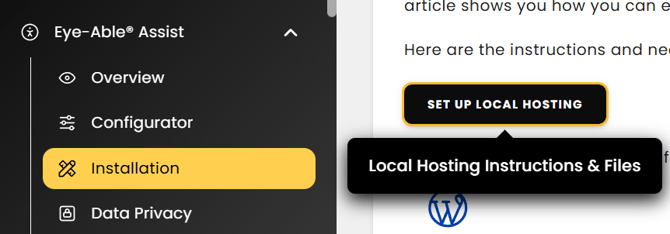
The Eye-Able configuration file needs to be added. You can download this file from the Eye-Able dashboard under
Eye-Able Assist → Installation → Set up Local Hosting → Download configuration file.

-
The configuration file contains the license key for the booked domain.
-
For the icon position, you can choose either "Automatic" (floating icon) or "Block position" (display at the block location).
-
The visibility of the block can be restricted optionally.
-
If Config Management is active, changes need to be exported and committed.
Data Protection
With this integration method, all Eye-Able files are loaded from the own server. No requests are made to Eye-Able servers, not even for the screen reader function.
Eye-Able should still be mentioned in the website's data protection text. A pre-written data protection text is available in the Eye-Able dashboard.
Updating the Library
Eye-Able files are not automatically updated. Since the URL in the composer.json does not contain a version number, Composer will not detect any changes.
To update, the existing library files must be deleted, and then composer install must be run again. The current version can be checked via the minimized CSS file name, for example:
css/eyeAble.1.14.17.min.css.
Alternatively, you can download the files directly from the Eye-Able dashboard, manually copy them into the library folder, and then commit the changes.