
Introduction
In this article, you will learn how to adjust the position of the Assist icon in the Eye-Able Dashboard and how to change the position of the functions within the toolbar.
Manually adjusting the position
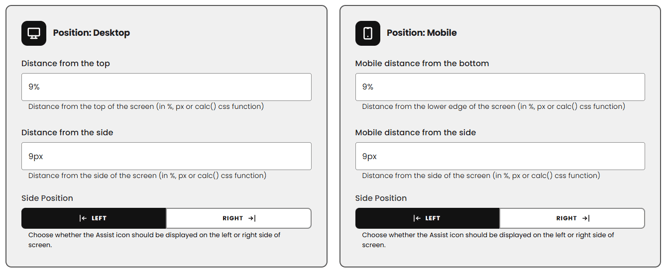
Through the Assist configuration in the Eye-Able Dashboard, you can adjust the icon’s position for both desktop and mobile views. You can define individual values for the top spacing, side spacing, and horizontal alignment (left or right). Use the preview option to ensure that the settings meet your requirements.
Adjusting the functions in the toolbar
You can also change the position of the functions within the toolbar. Move functions between the main menu and the More Functions menu by clicking the corresponding button. Please note that the functions Instant View, Font Size, Contrast Mode, and Read Website are core functions and cannot be moved.
Step-by-step instructions
1. Open the Eye-Able Dashboard
2. Navigate to the Assist configuration
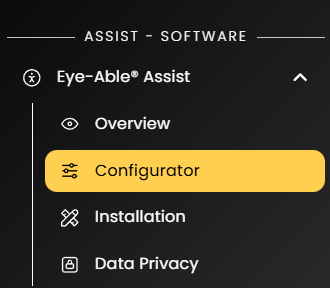
3. Click on “Position” in the menu

Under this section, you can:
-
Adjust the position for desktop and mobile view
-
Define the top spacing and side spacing
-
Set the horizontal alignment to either right or left
-
View a preview to see how the selected position appears in practice


4. Click on “Function Position” in the menu

Under this section, you can:
-
Adjust the position of the functions within the toolbar
- Move functions between the main menu and the More Functions menu by clicking the corresponding button
Note that the functions Instant View, Font Size, Contrast Mode, and Read Website are core functions and cannot be moved